This is the multi-page printable view of this section. Click here to print.
User Stories
1 - User Stories [Admin]
Configure Sources
As an admin, I need to configure OSINT sources to be gathered for intelligence gathering purposes.
Word Lists
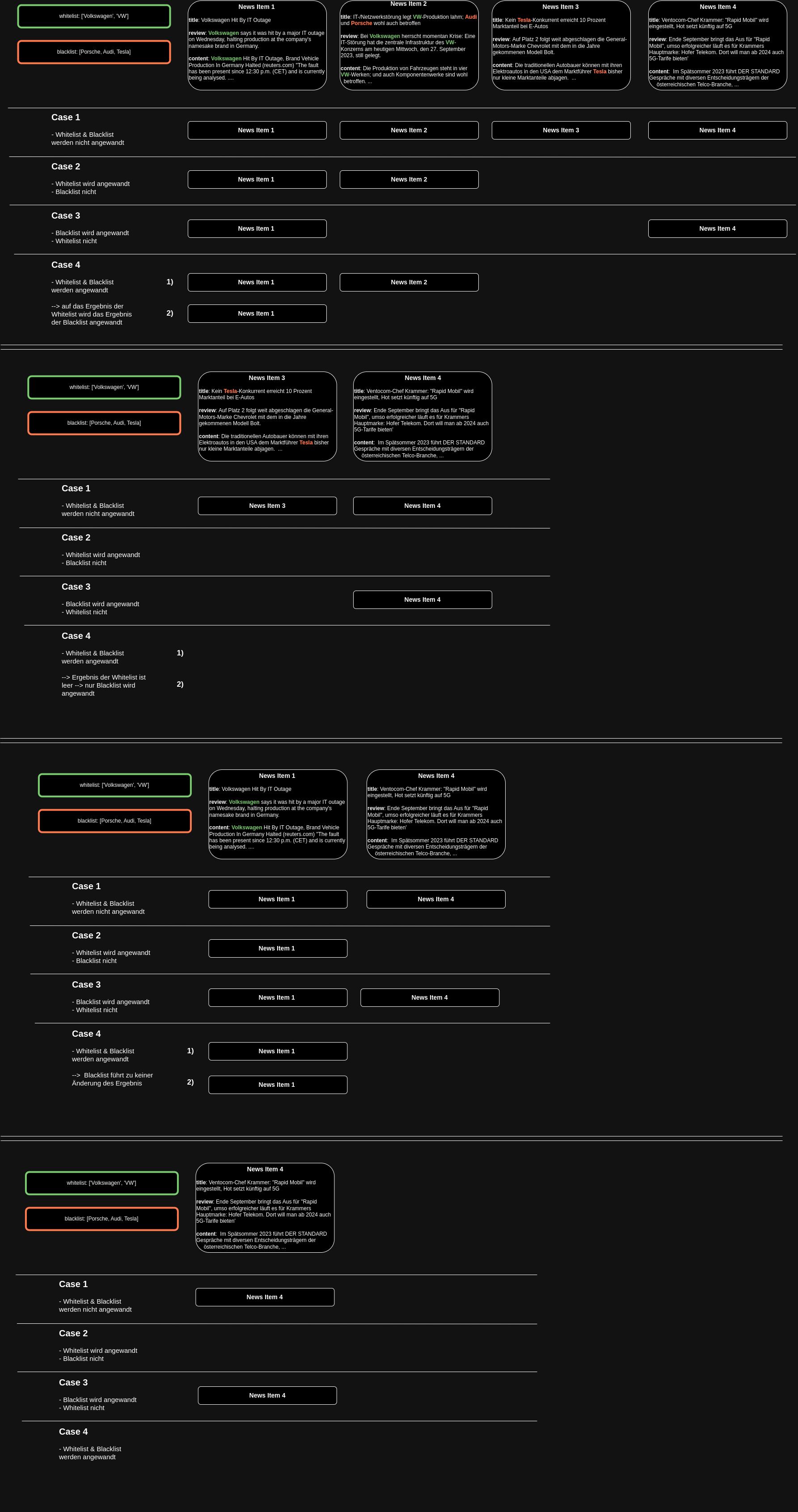
As an admin, I need the ability to utilize Word Lists for filtering news items during collection or enhancing them with a Bot. This includes the capability to import and export word lists and apply them based on their designated usage, such as adding tags with the word_list_bot.
Configure Report Types
As an admin, I need the ability to configure new report types.
Configure Users
As an admin, I need to manage user accounts by creating and deleting users, ensuring they have the necessary access for their tasks.
Configure ACLs and roles
As an admin, I need to configure Access Control Lists (ACLs) and roles to define permissions for each role. This allows me to effectively manage user permissions, control access to sensitive information, and maintain compliance with organizational policies and regulations.
2 - User Stories [Analyst]
Topics Dashboard [Dashboard]
As an analyst, I require access to a Topics Dashboard feature that displays the most important news topics. This dashboard should prioritize the most frequently occurring tags, offering a snapshot of the prevailing themes and subjects within the collected news items.
Assess Stories [Assess]
As an analsyt, I want to review all stories gathered in a fixed time period. I want to be able to set a stard and end date for items to be displayed. If I set these time limits I want to display Stories with pageing otherwise there will be an infintescroll representing the everchanging nature of stories.
Search, Filter and Sort [Assess]
As an analyst, I need the capability to search for news items by entering any text string. To provide a ranked list of results based on the relevance to the search query, enabling me to quickly and effectively identify the most pertinent articles for further analysis.
Vote on Story [Assess]
As an analyst, I want to mark news items as important by voting on them. To allow me to quickly identify and categorize significant articles for easy retrieval at a later time. Each Story includes buttons for down and up voting as well as for marking an story as important. Via a shortcut (ctrl+i) I can mark all selected stories as important.
Mark as read [Assess]
As an analyst, I want to mark news items as read to prevent myself and other anlyst from viewing the same story multiple times. Each Story contains a button to mark a story as read or unread if already marked as read. The same behaviour can be toggled via a shortcut (ctrl+space).
Tags [Assess]
As an analyst, I need the ability to filter news items based on tags, attributes, or important keywords. To allow me to quickly find relevant news items by applying a tag filter within the tool. The interface should provide an option to enter or select tags, and display the filtered results. In scenarios where no news items match the selected tags, it should result in an empty story list.
Create and edit News Item [Assess]
As an analyst, I need a feature that enables me to create news items, specifying details such as title, publish date, review, link, article content, and attributes. To maintain data integrity, the editing function will be disabled for any news item once it is included in a report. For ease of use, each news item has an edit button in the Asses view.
Manage Report [Analyze]
As an analyst, I want to create and edit reports directly within the Analyse view. I can create reports from predefined list of report types managed by an administrator. I can edit the metadata of this report, and add Stories to it. I can mark the report as “completed” to allow further processing and publishing.
Manage Product [Publish]
As an analyst, I require a feature to create reports directly within the Analyse view. I can create reports from predefined list of report types managed by an administrator. I can edit the metadata of this report, and add Stories to it. I can mark the report as “completed” to allow further processing and publishing.
Publish Product [Publish]
As an analyst, I want to publish the findings of a report. So they can be viewed outside of Taranis AI. I can choose only Reports that match my Product type. I can render a preview of the Product before sharing. I can choose the destination where to publish from a predefined list (publishers) managed by an administrator.
2.1 - Workflow [Analyst]
Upon logging in, the analyst is greeted by the Dashboard, which displays significant tags, statistics, and saved Assess filter shortcuts. This view sets the context for the analyst’s tasks ahead.
To enhance workflow efficiency, please review the available hotkeys. Additionally, for simplified filtering, set the “End of Shift” time in the user settings. This feature allows the system to display only articles published since the last end of shift, ensuring you see content that hasn’t been reviewed yet.
Assess
To assess your items, go to the Assess section and set the time filter. Apply the “not read” and “not important” filters. Save this as a default filter if it is your normal review queue. Mark as read any items that have been read but are considered unimportant. Continue working through these items until all are marked as read, focusing only on checking summaries.
Next, set the filter to “not read” and “important”. Verify the importance of each item and mark it as read if not important. Check whether the item is part of an older report and determine if it still adds value. If not, remove the “important” tag and mark the item as read. If multiple items discuss the same topic, merge them.
Use Omnisearch for quick jumps, for example story: tag:ransomware read:false, report: weekly, or product: stix.
To update a summary manually or with AI, first click the “Edit Story” button. Then, edit the summary yourself or use the AI actions when advanced story edit options are enabled. Send important or sector-specific items via a connector or add them to the relevant reports. Optionally, vote Stories up or down and bookmark Stories that need follow-up.
Finally, remove the “important” tag and mark the item as read. For greater efficiency, consider using the time filter to focus on the most recent content.
Additional tasks during assess
During the review process in the Assess tab, the analyst has several tools at their disposal to optimize their workflow:
Voting on Stories: The analyst can vote stories up or down and mark them as important using buttons or the shortcut (Ctrl+I). This helps highlight stories of particular relevance.
Mark as Read: To maintain efficiency and avoid redundancy, the analyst can mark stories as read or unread using a button or the shortcut (Ctrl+Space).
Tags: Tag filters can be applied to narrow down the selection to the most relevant articles, improving focus. If a story needs editing or creation, the analyst can do so directly within the Assess tab, where news items can be adjusted until they are locked into a report. This ensures the content remains fresh and accurate.
Bookmarks: Bookmark collections are private per user. Use them for follow-up queues, handover topics, and Stories that should stay visible after they are marked read.
Version history: Story version history can be used to inspect how a Story changed over time, especially after manual edits, grouping, ungrouping, bot updates, or connector synchronization.
Once all relevant stories are collected and reviewed, the analyst moves to the Analyze tab to finalize the report and mark it as completed. This step transitions the process from review to dissemination
Analyze
To analyze your items, go to the Analyze section and review the Report. Add Stories to the appropriate sections, save changes, inspect version history when needed, and mark the Report as completed when it is ready for publication.
Publish
Finally, the Publish tab is where the compiled Report becomes a Product ready for external consumption. The analyst chooses a Product Type, renders and reviews the final Product preview, then publishes manually or uses autopublish with a default Publisher.